Account & access
How you sign in, how organisations and their members fit together, what each role may do, and how to give scripts and CI pipelines their own access.
At a glance
- No passwords. Sign in with a magic link sent to your email, or with Google. Sessions last seven days and extend while you use them.
- Everything belongs to an organisation — resources, the wallet, the team. You can belong to several and switch between them.
- Four roles: owner, admin, member, viewer. Owners and admins create, delete, pay and manage people; members operate what exists; viewers look.
- API tokens give the CLI and the public API access to one organisation, with a role no higher than yours, for up to a year.
Signing in
There are no passwords to create or remember. Two ways in, from the sign-in page:
- Magic link — enter your email address and we send you a link. Open it and you are in. The link expires after one hour; if it has expired, request another. The first time you sign in this way, an account is created for that address.
- Continue with Google — choose your Google account. Google supplies your name, so you skip the name prompt below.
An account signed in with a magic link for the first time is asked What should we call you? (at /dash/welcome) before it can go further. The name is what other members see in
the member list, what invitations say they came from, and who activity is attributed to. You can
change it later in Settings.
Sessions and signing out
A session lasts seven days and is extended as you use it, so an account in regular use stays signed in. Sign out from the account menu ends the session in that browser. If the platform deactivates an account, its access ends immediately — open sessions and API tokens included.
Account settings
Open Settings from the account menu. It has four tabs:
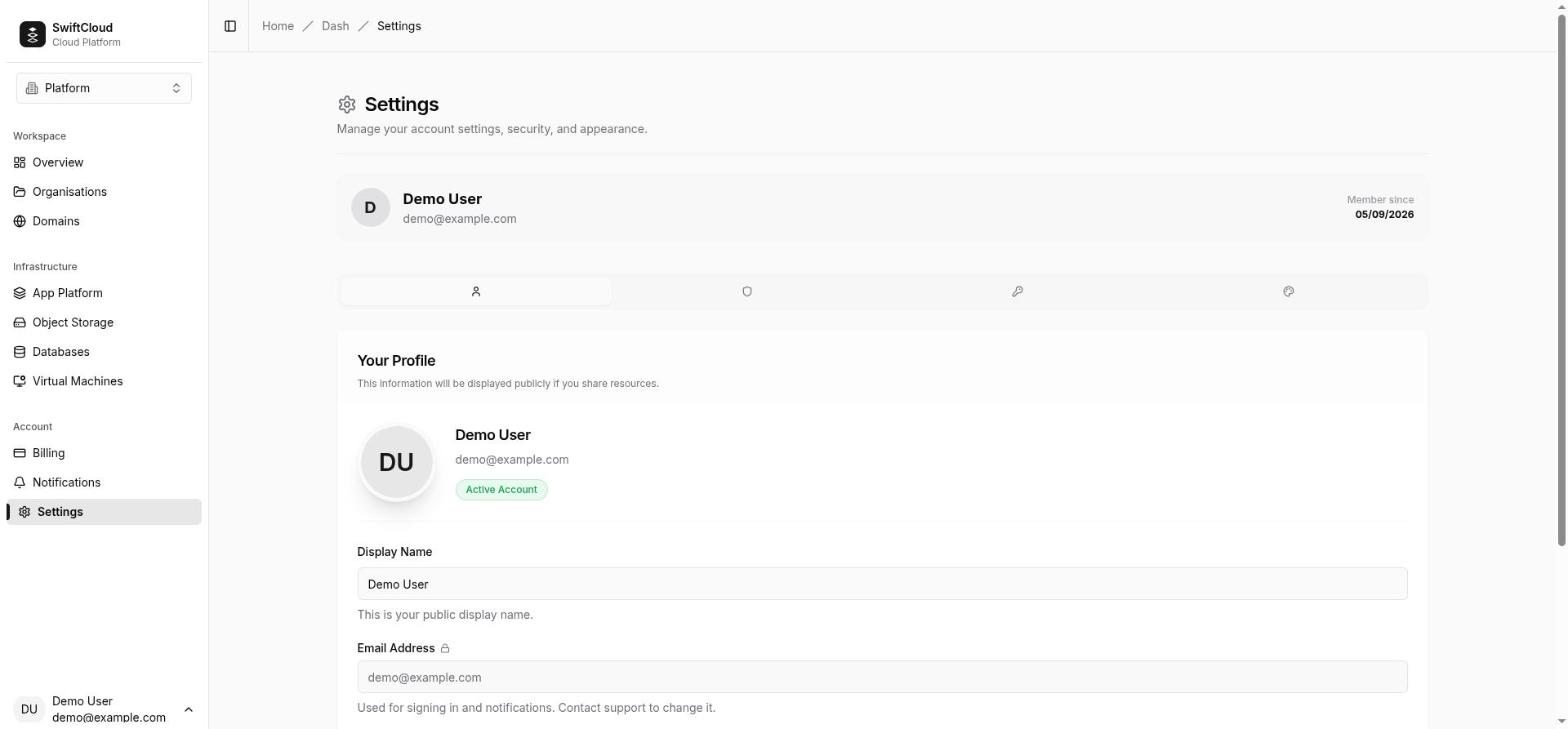
- Profile — your display name (2 to 60 characters). Your email address is shown but cannot be changed here: an address change needs a verification step, so ask support.
- Security — how you are signed in, and Delete my account (see below). Two-factor authentication is not available yet.
- API tokens — see API tokens.
- Appearance — light, dark or system theme, and Dates and times: the time zone and date format the console uses. Leave them on follow this browser, or pin them so times stay put when you travel. Emailed statements use the same choice.
Organisations
An organisation is the unit everything belongs to: apps, databases, virtual machines, buckets and domains, the prepaid wallet, and the people allowed to use them. Resources belong to the organisation, never to the person who created them.
Create an organisation
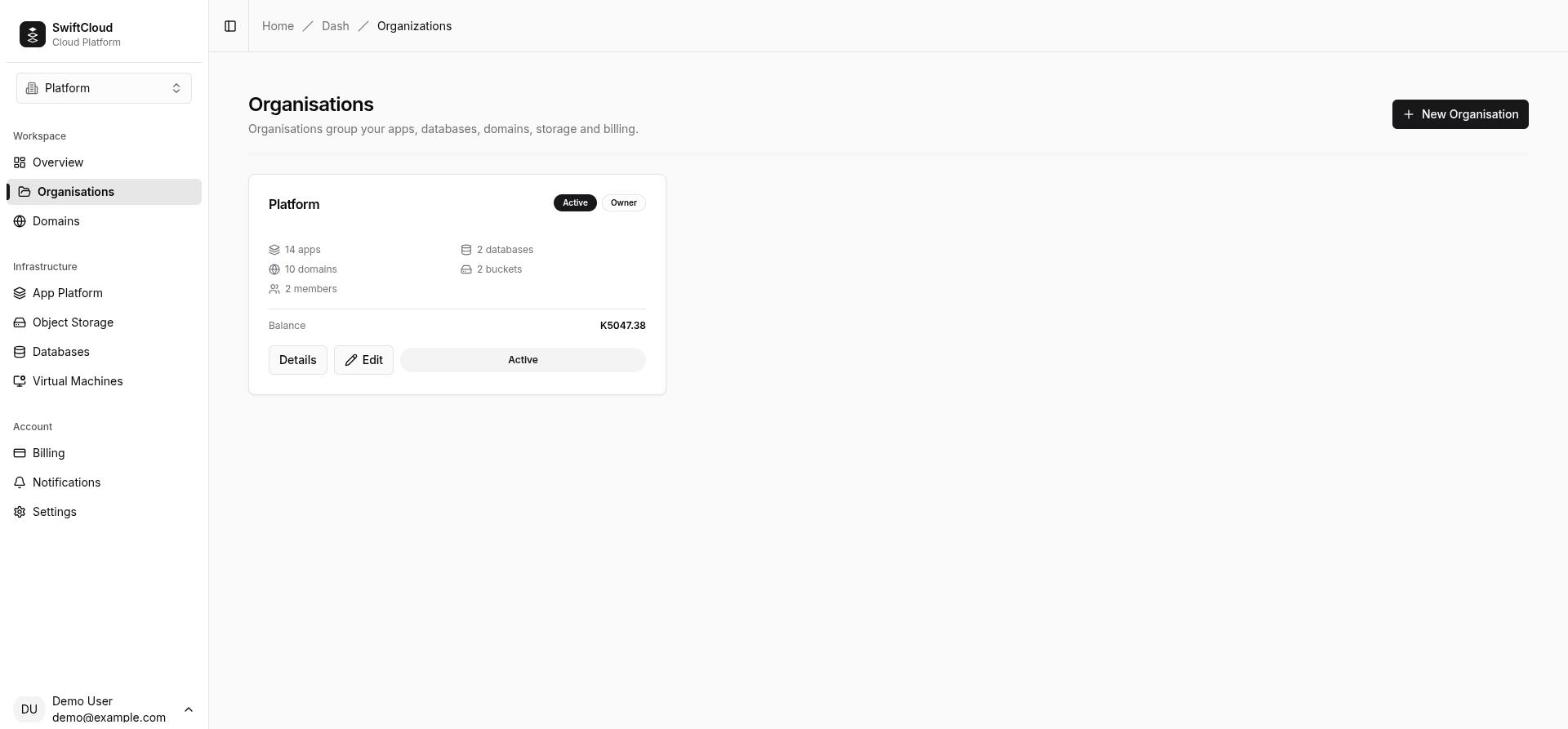
- Open Organisations and select New Organisation (also on the dashboard).
- Give it a name and, optionally, a description. A short URL-safe slug is made from the name; the CLI uses it to refer to the organisation.
- You become its owner, and it gets a wallet at
K0.00. Top it up before creating anything that costs money — see Billing.
Switching organisations
The console works in one active organisation at a time. Switch from the organisation switcher in the sidebar or with Switch on the Organisations page. The first time you sign in with no organisation selected, the oldest one you belong to is selected for you. In the CLI:
cloud org list               # your organisations and your role in each
cloud org use acme           # make "acme" (a slug) the default
cloud app list --org other   # just this once, without changing the default
The organisation page
Open an organisation from the list to see everything in it at a glance: its resources (with any needing attention), members, pending invitations and recent activity. Owners and admins also see the balance, billing status, hourly spend and runway, and the latest ledger lines.
Renaming an organisation
Owners and admins can change the name and description with Edit on the Organisations page. The slug does not change, so scripts that use it keep working.
Deleting an organisation
There is no self-service way to delete an organisation. Delete its resources (which stops their charges), then contact support to close it.
Members and invitations
Owners and admins manage the team from the organisation's page.
- Enter the person's email address, choose a role and select Send. The menu describes each role: Member — use and change existing resources; Admin — create and delete resources, billing and people. Only an owner can invite another owner.
- They receive an email with a link. The invitation is for that address: they must sign in with it (by magic link or Google) to accept. Signed-in users also see their invitations under Notifications, where they can accept or decline.
- An invitation expires after 48 hours. Until then it is listed under Invited, not yet accepted, where you can Withdraw it. To invite someone whose invitation expired, send a new one.
Changing roles and removing people
- Owners and admins change a member's role from the role menu beside their name.
- Only an owner can make someone an owner, demote an owner, or remove an owner.
- The last owner cannot be removed or demoted — make someone else an owner first. An organisation always has someone who can manage it.
- Removing someone ends their access, and any API tokens they made for this organisation stop working at once. Everything they created stays with the organisation.
- Anyone can leave an organisation: select Leave on your own row in the members list and confirm. The one exception is the last owner, who must make someone else an owner first.
Roles and permissions
Every member has one role per organisation. The same rules apply in the console, the CLI and the API.
| Action | Owner | Admin | Member | Viewer |
|---|---|---|---|---|
| See resources, their status, metrics and app logs | ✓ | ✓ | ✓ | ✓ |
| See the balance, spend and ledger on Billing | ✓ | ✓ | ✓ | ✓ |
| Create apps, databases, machines, buckets, domains and DNS records | ✓ | ✓ | — | — |
| Restore a database backup into a new database | ✓ | ✓ | — | — |
| Change the size (plan) of an app, database, bucket or machine | ✓ | ✓ | — | — |
| Attach a dedicated IP to a machine | ✓ | ✓ | — | — |
| Delete resources, domains, DNS records, database backups and stored objects (including renaming an object in the console, which deletes the old name) | ✓ | ✓ | — | — |
| Deploy, scale and configure apps; add custom domains | ✓ | ✓ | ✓ | — |
| Start, stop and restart databases and machines | ✓ | ✓ | ✓ | — |
| Read credentials (database passwords, bucket secret keys); run SQL in the SQL editor | ✓ | ✓ | ✓ | — |
| Create bucket keys and share links; upload objects; change bucket settings | ✓ | ✓ | ✓ | — |
| Open an app shell, a machine's serial or graphical console | ✓ | ✓ | ✓ | — |
| Manage machine SSH keys; release a dedicated IP | ✓ | ✓ | ✓ | — |
| Turn database backups on or off, take a backup now | ✓ | ✓ | ✓ | — |
| Edit DNS records | ✓ | ✓ | ✓ | — |
| Top up by mobile money or card | ✓ | ✓ | — | — |
| Redeem a coupon | ✓ | ✓ | — | — |
| Receive statements and balance emails | ✓ | ✓ | — | — |
| Invite, remove and change the role of members, admins and viewers | ✓ | ✓ | — | — |
| Invite, promote, demote or remove owners | ✓ | — | — | — |
| Rename the organisation | ✓ | ✓ | — | — |
| Create API tokens (up to their own role) | ✓ | ✓ | ✓ | ✓ |
The rule behind the table: anything that creates a resource or raises what the organisation pays — a new resource, a bigger size, a dedicated IP, a top-up or a coupon — needs an owner or admin. Members operate what already exists: they can deploy, restart, connect, read credentials and open consoles. Give the member role to people you trust to operate resources, not only to look at them.
Choosing the right role
- Owner — the people accountable for the organisation. One or two is usually enough; keep at least two so the organisation is never stranded.
- Admin — day-to-day leads: create and delete resources, manage the team and pay for things.
- Member — developers and operators who deploy, restart, connect and debug, but should not create, delete or spend.
- Viewer — people who need to see what is running and what it costs: finance, project managers, clients. They cannot change anything or read credentials.
The CLI and scripts
Signing in from the CLI
cloud login shows a short code and opens a page in your browser. On any device
where you are signed in to the console, check the code matches and approve it. The CLI then holds
an ordinary seven-day session. No password or token passes through the terminal, and it works
over SSH (--no-browser prints the link instead of opening it).
cloud login
cloud whoami      # who you are, which organisation and region the CLI will use
cloud logout
API tokens
For CI and scripts — anything without a person at a browser — create an API token. A token:
- is bound to one organisation and refused for any other;
- carries a role no higher than yours in that organisation. It always acts with the lower of its own role and your current role, so if you are demoted or removed, your tokens lose that access immediately;
- works with the CLI and the public API (
/api/v1) only — it cannot sign in to the console or create other tokens; - lasts 7 days by default; choose 1, 7, 30 or 90 days, or one year at most;
- stops working at once if you revoke it, if it expires, or if your account is deactivated.
Create a token
- Open Settings → API tokens.
- Give it a name you will recognise later (up to 64 characters, for example
github-actions), choose the organisation, the role and the lifetime. - Copy the secret. It starts with
sc_and is shown once — only a fingerprint of it is stored, so it cannot be shown again. Lose it and you create a new one.
The token list shows each token's organisation, role, prefix, expiry, when it was last used and whether it is Active, Expired or Revoked.
Use a token
# CI: set the token and the defaults as environment variables
export CLOUD_TOKEN=sc_...
export CLOUD_ORG=acme
export CLOUD_REGION=zm-lsk-1
cloud app deploy api --image ghcr.io/acme/api:1.5

# or store it once on a machine
echo "$TOKEN" | cloud login --token-stdin

# the public API directly
curl -H "Authorization: Bearer $CLOUD_TOKEN" https://cloud.co.zm/api/v1/me
In GitHub Actions, keep the token in a repository secret:
env:
  CLOUD_TOKEN: ${{ secrets.SWIFTCLOUD_TOKEN }}
  CLOUD_ORG: acme
Revoke a token
Select Revoke beside it in Settings → API tokens. Revocation is immediate. You can only see and revoke tokens you created; an owner or admin who needs to cut off someone else's tokens removes or demotes that person, which takes effect on their tokens at once.
Emails and notifications
| Who receives it | |
|---|---|
| Sign-in link | the address that asked for it |
| Invitation to an organisation | the invited address |
| Low balance, balance empty, suspended, deletion reminders, deleted, service restored | owners and admins |
| Monthly statement | owners and admins |
| Payment receipt | the person who paid, and the organisation's owners and admins — once per settled payment |
| Activity on the organisation — a resource started, stopped, deleted or changed, a key or domain added, a member invited, removed or given a new role | owners and admins |
An activity email says who did what to which resource, and its button opens that resource's page — or, if the resource has since been deleted, the list it was in; membership changes open the organisation's page.
There are no per-person email preferences yet: these emails cannot be switched off in the console. Billing and activity emails go only to owners and admins on purpose, so make sure those roles belong to people who read their email.
The Notifications page in the console lists invitations sent to your address, pending and past, with Accept and Decline.
Deleting your account
Settings → Security → Delete my account works for anyone who is not the only owner of an organisation. If you are, it is refused and names those organisations: make someone else an owner of each (or delete what is in them and ask support to close them) and try again.
When it goes ahead, deleting your account:
- removes you from every organisation you belong to;
- ends your sessions (console and CLI) and revokes your API tokens; sign-in links already sent no longer reach the account, and invitations waiting for your address are cancelled;
- hands any organisation you were recorded as the owner of to one of its other owners;
- replaces your name and email with an anonymous placeholder, so you no longer appear by name.
It does not delete your organisations or their resources — they belong to the organisation, and its other members keep them. Payment and activity records stay, attributed to the anonymised account.
Questions
The sign-in email has not arrived.
Check spam, and that you typed the address correctly. Links expire after an hour; request a new one rather than using an old email. Or use Continue with Google if the address is a Google account.
I was invited at a different address.
An invitation can only be accepted by the address it was sent to. Sign in with that address, or ask an owner or admin to withdraw it and invite the address you use.
My token gets "bound to a different organisation".
Tokens reach one organisation only. Set CLOUD_ORG (or --org) to the
organisation the token was made for, or create a token for the other one.
A command says my role cannot do something.
Your role, or your token's role, does not allow it — see the table above. A token never has more access than you do now, even if it was created when you had more.