Object storage
Buckets for files that are not tied to a running server — images, backups, user uploads,
static site assets, logs. Object storage speaks the S3 API, so any tool or SDK that works
with Amazon S3 works here: point it at the SwiftCloud endpoint and sign with region zm-lsk-1.
At a glance
- What you get: a bucket of a fixed size (its reserved capacity), in
Lusaka, reachable over HTTPS at
https://s3.zm-lsk-1.cloud.co.zm. - What you pay: a flat hourly price for the size you choose — not per request, per GB stored or per GB transferred. See Billing.
- Who can reach it: anyone holding one of your organisation's access keys. Nothing is public unless you make the whole bucket, or named folders in it, public — and the platform proves that rule works before it says so.
- How you use it: the console's file browser, the
cloudCLI, any S3 tool (AWS CLI, rclone, s3cmd, MinIO Client, Cyberduck) or any S3 SDK. - Use it for: anything that is a blob of bytes with a name. Do not use it as a database or a file system for a running app — use a database or a machine's disk for that.
Two names for a bucket
When you create a bucket you give it a name — say photos. That name is unique
within your organisation. The platform also gives the bucket a physical name,
your name followed by twelve random characters (for example photos-84d0711bd48d), which is unique across the whole platform.
- S3 tools and SDKs need the physical name:
s3://photos-84d0711bd48d/2026/photo.jpg. Usingphotosthere fails with "no such bucket" or "access denied". - The
cloudCLI and the API accept either name (the API also accepts the bucket's id). - The bucket page shows both: the name you chose as the title, the physical name in the
object browser's breadcrumb, in the Connection Information card and in the bucket's own
hostname,
photos-84d0711bd48d.s3.zm-lsk-1.cloud.co.zm.
Why two? Your name stays meaningful to you, and two organisations can both have a bucket called backups without ever sharing one.
Create a bucket
- In the console, open Object Storage and click Create Bucket.
- Choose the organisation and the region (
zm-lsk-1). If storage is not available in a region yet, the form says so and will not submit. Creating a bucket needs the owner or admin role; for any other role the form says so and will not submit. - Enter a bucket name: 3–63 characters; lowercase letters, digits, hyphens and
dots; starting and ending with a letter or digit; no two dots in a row; not shaped like an IP
address (
192.168.1.1). It must be unique in the organisation. - Pick a size. This is the capacity the bucket reserves and the only thing that sets the price. The estimate under the form shows the hourly and monthly cost.
- Optionally switch on Versioning and Public Access (the whole bucket readable by anyone). Both can be changed later, and both are applied on the storage service and verified, not just recorded. If either cannot be applied, the bucket is still created and the problem is recorded on it.
- Click Create Bucket. The bucket exists when the form returns — there is no provisioning wait.
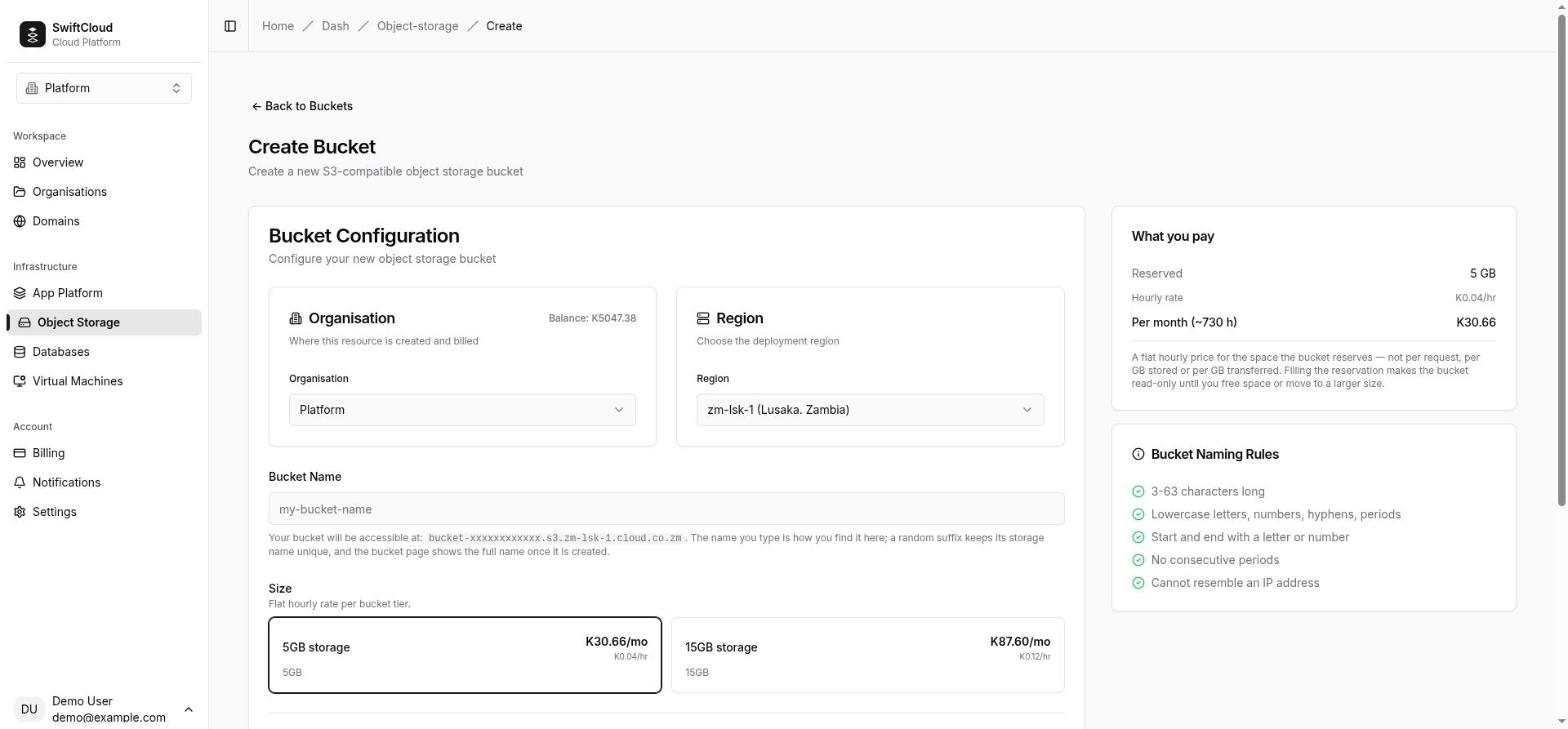
From the CLI:
cloud storage bucket create photos --region zm-lsk-1 --size s3-15
# Created photos — status: ready
# Address objects as s3://photos/… (physical name photos-84d0711bd48d)
--size takes a tier name from the pricing page; leave it
out and the smallest available size is used. --region can come from your CLI
context or CLOUD_REGION instead. New buckets are always private with versioning
off from the CLI and API; use bucket update afterwards.
Endpoint, region and credentials
Every S3 client needs the same four things:
| Setting | Value |
|---|---|
| Endpoint | https://s3.zm-lsk-1.cloud.co.zm (HTTPS, port 443) |
| Addressing | Path-style: https://s3.zm-lsk-1.cloud.co.zm/<physical name>/<key> |
| Signing region | zm-lsk-1 (Signature Version 4) |
| Credentials | an access key ID and secret access key — see Access keys |
Configurations made earlier with the placeholder region us-east-1 keep working;
new ones should say zm-lsk-1.
The bucket page's Connection Information card shows the same values the CLI
and API give: the access key ID and secret, the region endpoint
(https://s3.zm-lsk-1.cloud.co.zm) as the S3 Endpoint, and a note
to use path-style addressing with the bucket's physical (storage) name and region zm-lsk-1. Every example here uses that form.
The CLI prints everything at once, in the shape other tools expect:
cloud storage bucket credentials photos                       # shell variables (default)
cloud storage bucket credentials photos --format aws-profile  # ~/.aws/credentials block
cloud storage bucket credentials photos --format rclone       # rclone.conf block
cloud storage bucket credentials photos -o json               # raw JSON
The env format sets AWS_ACCESS_KEY_ID, AWS_SECRET_ACCESS_KEY, AWS_REGION, AWS_DEFAULT_REGION and AWS_ENDPOINT_URL_S3, and ends with a comment naming the physical bucket. The aws-profile and rclone formats name the profile or remote cloud- followed by the bucket name you passed (here cloud-photos).
Access keys and rotation
Your organisation's storage identity holds one or two active key pairs. Two exist so you can roll credentials without downtime. The first pair is created with your first bucket in the region; you never need to create one to get started.
- Add a key — on any bucket's page, Access keys → Add a key. The secret is shown once; copy it before you click "I have copied it". If two are already active, revoke one first.
- Revoke a key — Revoke beside it. The last active key cannot be revoked (you would lock yourself out); add a replacement first.
- Timing — a new key starts working, and a revoked one stops, within about a minute.
- Which secret the console shows — Connection Information and
bucket credentialsalways show the organisation's primary pair (the oldest active one). A key you add is a second pair whose secret you saw once. When you revoke the primary, the other pair becomes primary and is shown from then on.
A rotation, start to finish:
cloud storage bucket keys list photos
cloud storage bucket keys add photos --label "ci runner"     # note the secret now
# …move every system to the new key and check it works…
cloud storage bucket keys revoke photos <old key id>          # asks you to type the id; --yes for scripts
The bucket argument only says which organisation and region you mean — the keys are the same whichever of your buckets you name. A key's label is optional, up to 60 characters.
Using the cloud CLI
The cloud CLI is the quickest way in: it is already signed in, accepts either bucket
name and needs no S3 configuration. Install it with curl -fsSL https://cloud.co.zm/install.sh | sh and run cloud login once.
See the CLI guide for contexts and output formats.
cloud storage list                                   # your buckets (same as: storage bucket list)
cloud storage bucket get photos                      # one bucket: names, size, usage, access
cloud storage ls s3://photos/                        # one level; -r for everything, --human for sizes
cloud storage stat s3://photos/2026/photo.jpg        # size, type and ETag of one object
cloud storage cp ./photo.jpg s3://photos/2026/photo.jpg
cloud storage cp ./site s3://photos/site --recursive
cloud storage cp s3://photos/2026/ ./backup --recursive
pg_dump mydb | gzip | cloud storage cp - s3://photos/mydb.sql.gz   # "-" reads stdin
cloud storage cat s3://photos/2026/photo.jpg > photo.jpg
cloud storage sync ./site s3://photos/site --delete  # --dry-run to preview
cloud storage mv s3://photos/draft.txt s3://photos/final.txt
cloud storage rm s3://photos/2026/photo.jpg
cloud storage rm s3://photos/2025/ --recursive # lists, then asks you to confirm the count- Objects go straight between your machine and the storage endpoint; their bytes never pass through the platform API. Large files upload in parallel parts.
- A copy within one bucket is done on the storage side, so nothing is downloaded. A copy between two buckets streams through your machine.
synctransfers a file when its size differs, or when sizes match and checksums differ. A file that was uploaded in parts has a checksum of its parts, so a same-size change to it cannot be detected (--dry-runsays so).--deleteremoves destination objects with no source counterpart, only under the destination prefix, and only after all uploads have finished — an interrupted sync never leaves the destination short. Run it again to pick up where it stopped.mvis a copy followed by a delete of the source.
Using other tools
Every S3-compatible tool needs the endpoint, the key pair, the
signing region zm-lsk-1 and path-style addressing — and it must
address the bucket by its physical name. The bucket credentials formats set all of that up for you.
AWS CLI
# One-off: export the variables into this shell (AWS_ENDPOINT_URL_S3 is set for you)
eval "$(cloud storage bucket credentials photos --format env)"
aws s3 ls s3://photos-84d0711bd48d/

# Persistent: write a named profile
cloud storage bucket credentials photos --format aws-profile >> ~/.aws/credentials
aws --profile cloud-photos s3 cp ./file.txt s3://photos-84d0711bd48d/
rclone
cloud storage bucket credentials photos --format rclone >> ~/.config/rclone/rclone.conf
rclone ls cloud-photos:photos-84d0711bd48d/
rclone sync ./site cloud-photos:photos-84d0711bd48d/site
The block sets provider = Other and force_path_style = true.
s3cmd
eval "$(cloud storage bucket credentials photos --format env)"
s3cmd --access_key="$AWS_ACCESS_KEY_ID" --secret_key="$AWS_SECRET_ACCESS_KEY" \
      --region=zm-lsk-1 \
      --host="${AWS_ENDPOINT_URL_S3#https://}" --host-bucket="${AWS_ENDPOINT_URL_S3#https://}" \
      ls s3://photos-84d0711bd48d/
Setting --host-bucket to the same host as --host is how s3cmd is
told to use path-style addressing rather than bucket.host.
MinIO Client (mc)
eval "$(cloud storage bucket credentials photos --format env)"
mc alias set cloud "$AWS_ENDPOINT_URL_S3" "$AWS_ACCESS_KEY_ID" "$AWS_SECRET_ACCESS_KEY" --api S3v4 --path on
mc ls cloud/photos-84d0711bd48d/
Cyberduck and other desktop clients
Choose the generic Amazon S3 (or S3-compatible) connection type and enter the
host s3.zm-lsk-1.cloud.co.zm, port 443, your access key and secret. If the client
offers the choice, select path-style access and region zm-lsk-1. Browse to the
bucket by its physical name.
In code (SDKs)
# Python — boto3
import boto3, os
s3 = boto3.client(
    "s3",
    endpoint_url=os.environ["AWS_ENDPOINT_URL_S3"],   # https://s3.zm-lsk-1.cloud.co.zm
    region_name="zm-lsk-1",
    config=boto3.session.Config(s3={"addressing_style": "path"}),
)
s3.upload_file("photo.jpg", "photos-84d0711bd48d", "2026/photo.jpg")
// Node — @aws-sdk/client-s3
import { S3Client, PutObjectCommand } from "@aws-sdk/client-s3";
const s3 = new S3Client({
endpoint: process.env.AWS_ENDPOINT_URL_S3,
region: "zm-lsk-1",
forcePathStyle: true,
});
await s3.send(new PutObjectCommand({ Bucket: "photos-84d0711bd48d", Key: "2026/photo.jpg", Body: data }));Both read the key pair from AWS_ACCESS_KEY_ID and AWS_SECRET_ACCESS_KEY. Any other SDK (Go, Java, PHP, .NET…) follows the same
recipe: endpoint, path-style, region zm-lsk-1, key pair, physical bucket name.
Run these from your server or app — never ship the key to a browser or mobile app; give
those a pre-signed URL instead.
The console file browser
The Objects card on a bucket's page shows what is in the bucket right now, one folder level at a time.
- Browse — click a folder to open it; the breadcrumb above the list (starting at the physical name) takes you back up. Long folders show Show more at the bottom. Refresh re-reads the listing.
- Upload — drag files onto the card, or use Upload files. Upload folder keeps the folder structure you picked. Files land in the folder you are viewing. Each upload shows its own progress bar; a failed one shows why.
- New folder — creates an empty folder (a zero-byte object whose name ends in
/). In S3 a folder is just a shared name prefix: uploadinga/b/c.jpgmakes foldersaandbappear without creating them first. - Download — opens a short-lived (five-minute) signed link to the object in a new tab.
- Rename — copies the object to the new name and deletes the original. Use slashes in the new name to move it into another folder. Because it deletes the original, the button is shown only to owners and admins.
- Delete — the bin icon deletes one object; tick several and use Delete N selected for a batch (up to 500 at a time).
- Versions — appears on each object while versioning is on. See Versioning.
- Pre-signed URL — a one-hour download link for any key you type. See Pre-signed URLs.
After an upload, a multi-select delete, a rename or a new folder in the console, the bucket is re-measured immediately so the Storage used and Objects tiles are current. Single deletes and changes made with other tools show up at the next 15-minute measurement.
How console uploads travel: direct or proxied
A browser may only send files straight to the storage endpoint if the endpoint answers the browser's cross-origin preflight with permission for the console's address. The platform sets that permission on every bucket and then proves it with a real preflight request. The verdict is stored on the bucket and re-checked at least once a day.
- Direct (check passed): files under 100 MB go in one signed upload; larger files go in 16 MB parts, four in flight at once. If a large upload fails, its parts are discarded. The fastest path, and the platform never carries your bytes.
- Proxied (check not passed): the file streams through the platform to storage. Up to 5 GB per file; the bucket's free space is checked against the file's size before anything is stored.
You do not choose the mode and nothing changes for you except speed. For files over 5 GB, or for
many files, use cloud storage cp or sync.
Public folders and public buckets
A bucket is private by default: nothing in it can be read without a key. Two ways to open it:
- Public folder — everything under one prefix (say
public/images) becomes readable by anyone with the URL; the rest of the bucket stays private. The usual choice for website assets and downloads. You can have up to 50. - Public bucket — every object is readable by anyone. Turning this on replaces any public folders; turning it off makes the bucket fully private.
Public means read one object whose name you know. Nobody can list the bucket,
upload, overwrite or delete through public access — only your keys can. Folder names cannot
contain *, ?, \ or ...
In the console: Settings → Public bucket, or type a folder under Public folders and add it; Make private removes one. Opening access asks you to confirm, because it takes effect immediately for files already there.
cloud storage bucket update photos --public-prefix public/images   # repeatable; keeps existing folders
cloud storage bucket update photos --remove-public-prefix public/images
cloud storage bucket update photos --public on --yes                # whole bucket
cloud storage bucket update photos --public off                     # fully private
A public object's address is https://s3.zm-lsk-1.cloud.co.zm/photos-84d0711bd48d/public/images/logo.png, or https://your-domain/public/images/logo.png with a custom domain.
How a public rule is verified
The platform does not just store your request. It applies the rule on the storage service,
writes a small probe object where the rule applies, fetches it with no credentials from the public endpoint, and deletes the probe. Only a 200 carrying the probe's
exact content counts.
Pre-signed URLs
A pre-signed URL lets someone without credentials download (or upload) one object for a limited time — for sharing a file without making anything public, or letting a user's browser upload directly to your bucket.
- Console — Pre-signed URL on the bucket page: type the object's full key (no leading slash) and get a download link valid for one hour.
- CLI — signs on your machine, no round trip:
cloud storage presign s3://photos/report.pdf # 1 hour cloud storage presign s3://photos/report.pdf --expires 24h cloud storage presign s3://photos/upload.jpg --method put --expires 15m cloud storage presign s3://photos/report.pdf --platform --version-id <id>--expiresis 1 second to 168 hours (7 days).--platformhas the platform mint the URL instead (needed for a specific--version-id). - Your own code — any SDK's presigner works with the settings in Endpoint and credentials; S3 caps expiry at 7 days.
Anyone holding the URL can use it until it expires; you cannot cancel a single URL, but revoking the key that signed it ends all of them. An upload URL bypasses the platform's free-space check — the bucket's size limit still applies at the next measurement. The pre-signed URL inspector decodes any link's expiry, method and bucket.
Versioning
With versioning on, overwriting or deleting an object keeps the previous version. Upload the wrong file or delete something by mistake, and the old version is still there to restore. Turn it on for anything you cannot afford to lose: user uploads, backups, generated reports.
- States — a bucket's versioning is never enabled, on, or suspended. Turning it off suspends it: new writes replace the object again, but every version already kept stays until you delete it. The console and API show this as on or off.
- Read back, not assumed — when you change it, the platform asks the storage service for the resulting state and records that answer. If they disagree you get an error and the setting is not shown as changed. The state is re-read every 15 minutes as well.
- In the console — Settings → Versioning. Each object then has a Versions button listing every version and delete marker, newest first, with Download, Restore (copies that version on top as a new current version — nothing is lost) and Delete (removes that one version permanently).
- Deleting a versioned object adds a delete marker; the object disappears from listings but its versions remain. Restore an earlier version to bring it back, or delete the marker.
cloud storage bucket update photos --versioning on     # or off (suspends)
cloud storage versions s3://photos/report.pdf           # ids, sizes, dates; "deleted" rows are markers
cloud storage restore s3://photos/report.pdf --version-id <id>CORS (browser access from your own site)
The platform manages each bucket's cross-origin (CORS) rules itself: they allow the SwiftCloud console to upload and download, and they are re-applied whenever the daily check runs. There is no setting to add your own website's origin, and rules you set with an S3 tool will be replaced.
What that means in practice:
- Showing public files on your site works —
<img>,<video>, links and downloads are plain requests that do not need CORS. - JavaScript on your site calling storage directly (
fetchof an object, or a browser upload to a pre-signed URL) will be blocked by the browser with a CORS error. Route those through your own backend: it receives the upload, or reads the object, and talks to storage with your key.
Your own domain in front of a public bucket
A bucket that is public, or has at least one public folder, can serve those files from your own
hostname over HTTPS, e.g. https://files.example.co.zm/public/images/logo.png. A custom
domain changes the name, not who may read: private objects still answer "access denied".
- At your DNS provider (or in SwiftCloud DNS), create a
CNAMErecord for your hostname pointing at the bucket's hostname, shown on the bucket page — e.g.files.example.co.zm CNAME photos-84d0711bd48d.s3.zm-lsk-1.cloud.co.zm. For a bare domain that cannot hold a CNAME,Arecords to the same addresses that hostname resolves to are accepted, but a CNAME keeps working if those addresses ever change. - On the bucket page, Custom domains → enter the hostname → add. Or
cloud storage bucket domains add photos files.example.co.zm. - The platform checks the DNS record. Once it points here, a TLS certificate is requested and issued automatically, usually within a minute or two. Until then the domain is re-checked every 15 minutes, and its status line says exactly what it is waiting for.
| Domain status | Meaning |
|---|---|
pending | Waiting for the CNAME ("It currently points at …" / "does not resolve"), or DNS is right and the certificate is being issued. |
active · HTTPS | Serving your public files with a valid certificate. |
failed | The bucket is no longer public, so the domain serves nothing — make it public again or remove the domain. Or the platform could not set the domain up (the message says so; we are notified). |
cloud storage bucket domains list photos                       # each hostname and what it is waiting for
cloud storage bucket domains add photos files.example.co.zm
cloud storage bucket domains remove photos files.example.co.zm   # by hostname or id
A hostname can be attached to only one bucket on the platform. Domains are served over HTTPS only. Removing a domain, or deleting the bucket, removes its route and certificate.
How usage is measured
- Every bucket is measured every 15 minutes by listing it and adding up the
size of every current object. The result is Storage used and Objects on the bucket page and
sizeBytes/objectCountin the API. - Console uploads, multi-select deletes and renames trigger an immediate re-measure. Changes made with keys appear at the next measurement — a fresh upload may not be counted yet.
- The bar under the tiles shows usage against the bucket's size (for example
3.20 / 15 GB (21%)).
Sizes, limits and read-only
A bucket's size is a hard reservation. Going over it does not cost more — instead, the bucket stops accepting writes until it is back under.
- First measurement over the size — the organisation's owners and admins (the people who can move it to a larger size) are emailed a warning. Writing still works.
- Still over at the next measurement — the bucket becomes read-only within about a minute: keys can read and list but not upload, overwrite or delete. Owners and admins are emailed and the bucket page explains it.
- Back under at any measurement — writing is restored automatically and owners and admins are emailed.
To get back under:
- Delete objects in the console — this works even while the bucket is read-only.
- Move to a larger size — click change beside the plan name on the usage bar, choose a larger size and Save plan (owners and admins only). The bucket is measured straight away against the new limit: if it now fits, read-only is lifted immediately and uploads through its access keys work again within about a minute; if it is still over, the confirmation says so. The new price applies from the next hour.
Other limits worth knowing:
- Console uploads through the platform: 5 GB per file. Direct console uploads and the CLI handle larger files in parts.
- Public folders per bucket: 50. Active access keys per organisation and region: 2.
- Pre-signed URLs: up to 7 days.
- Bucket names: 3–63 characters, unique in the organisation.
Bucket statuses
| Status | Meaning |
|---|---|
ready | Normal. Created, reachable and billed. |
suspended | Your organisation was suspended for an unpaid balance. Data is kept and the bucket is not charged, but it cannot be used: access keys, uploads, downloads and pre-signed links stop working, public access (whole bucket or public folders) is lifted for the suspension, and changes such as versioning and new keys are refused. In the console you can still list and delete objects. Top up to return it to ready: access comes back, and public access is re-applied and re-verified — if it cannot be verified, the bucket stays private and the page tells you to turn it on again. See Billing for how long suspended data is kept. |
Alongside the status, the bucket page shows:
- Read-only or Over the storage limit notices — see limits.
- The Security card: Versioning On/Off, and Private, Public Access or N public folders — each reflecting what the storage service confirmed.
The API's status field documents creating, failed and deleting as well; a bucket is created and deleted within one request, so in practice
you will see ready (or suspended). When something did go wrong — a
setting chosen at creation could not be applied, or a delete failed — the reason is in the
API's errorMessage and printed by cloud storage bucket get.
Who can do what
| Action | Viewer | Member | Admin / Owner |
|---|---|---|---|
| See buckets, browse objects, download, list versions, see the access key ID | yes | yes | yes |
See the secret key, bucket credentials | — | yes | yes |
| Upload, new folder, restore a version | — | yes | yes |
| Change versioning and public access, custom domains, add/revoke keys, pre-signed upload links | — | yes | yes |
| Delete objects or versions; rename an object in the console (it deletes the old name) | — | — | yes |
| Create or delete a bucket; change its size (plan) | — | — | yes |
These are your role in the SwiftCloud organisation. Anyone holding an access key can do anything S3 allows on the organisation's buckets, whatever their role — another reason to guard keys.
Billing
If your balance reaches zero, your organisation goes through a grace period and then suspension; buckets keep their data while suspended, but nobody can read or write it until you top up. The billing guide explains top-ups, the grace period and how long suspended data is kept.
Delete a bucket
On the bucket page, Delete → Delete bucket. From the CLI you
are asked to type the bucket's name (--yes skips this in scripts):
cloud storage bucket delete photosIf the delete cannot complete, the bucket and its objects are left exactly as they were (and still billed), the reason is recorded on it, and you can simply try again.
Troubleshooting
SignatureDoesNotMatch
The storage service computed a different signature from the one your client sent. Usually:
- The secret is wrong — truncated when copied, from a revoked pair, or the
secret of a different key ID. Re-run
cloud storage bucket credentials. - Addressing style — the endpoint must be
https://s3.zm-lsk-1.cloud.co.zmwith path-style on. Do not put the bucket in the endpoint and in the path at the same time. - Your clock is off — signatures are time-stamped; a machine more than a few minutes out fails. Turn on network time.
- Something rewrote the request — a proxy that changes headers or the path breaks the signature. Retry without it.
403 Access Denied / InvalidAccessKeyId
- The key or bucket is brand new — a new key, a revoked key, and a newly created bucket take about a minute to take effect. Wait and retry.
- You used the display name — S3 tools need the physical name
(
photos-84d0711bd48d), notphotos. - The bucket is read-only — uploads and deletes with keys are refused while it is over its size. The bucket page says so; see limits.
- The bucket belongs to another organisation — keys only reach their own organisation's buckets.
- A public URL returns 403 — the object is not under a public folder (check the exact prefix; it is case-sensitive), or the bucket is private. Listing a bucket anonymously is always refused.
- A pre-signed URL returns 403 — it expired, the key that signed it was revoked, or it was used with a different method from the one it was signed for.
CORS errors in the browser
- From your own website — expected for JavaScript requests: see CORS. Plain
<img>tags and links to public files work. - In the console — uploads fall back to going through the platform when the
browser-access check has not passed, so a console upload should not fail on CORS. If one says
"ETag not exposed" or keeps failing, retry, or upload with
cloud storage cp.
Other problems
- NoSuchBucket — almost always the display name instead of the physical name.
- A large upload was cut off — when the platform applies access changes on the storage service (a new key, a new bucket, read-only switching on or off) a request in flight can be interrupted. S3 tools and the CLI retry automatically; re-run anything that gave up.
- Storage used has not changed — it updates every 15 minutes, or immediately after a console upload, rename or multi-select delete.
- "Two key pairs are already active" — revoke the one you no longer use, then add.
- "Make the bucket, or a folder in it, public first" — custom domains only serve public files.
API equivalents
Every operation above is in the public API under https://cloud.co.zm/api/v1,
authenticated with Authorization: Bearer <token> (a cloud login session token or an organisation API token). {bucket} is the display name,
physical name or id. Errors are problem documents; a detail ending in a reference
code means support can look up the full cause. The full schema is at /api/v1/openapi.json.
| Method and path | Does |
|---|---|
GET /orgs/{org}/buckets | List buckets (paginated). |
POST /orgs/{org}/buckets | Create: {"name", "region", "size"?}. Returns bucketName (physical) and endpoint. |
GET /orgs/{org}/buckets/{bucket} | One bucket, with usage, publicAccess, publicPrefixes, versioning, readOnly. |
PATCH /orgs/{org}/buckets/{bucket} | {"versioning"?, "publicAccess"?, "publicPrefixes"?} — applied and verified before it returns. publicPrefixes replaces the list. |
DELETE /orgs/{org}/buckets/{bucket} | Delete the bucket and all its objects (204). |
GET …/{bucket}/credentials | Key pair, endpoint, physical name and signing region. Never cached. |
GET | POST | DELETE …/{bucket}/keys | List keys; add one ({"label"?}, secret in this response only); revoke ({"keyId"}). |
POST …/{bucket}/presign | {"key", "method"?: GET|PUT|DELETE, "expiresIn"?: seconds ≤ 604800, "versionId"?}. |
GET …/{bucket}/versions?key=… | Every version and delete marker of one object, newest first. |
POST …/{bucket}/restore | {"key", "versionId"} — make that version current (204). |
GET | POST | DELETE …/{bucket}/domains | List custom domains with status, tls, message and the CNAME target; add ({"domain"}); remove ({"domainId"}, id or hostname). |
Objects themselves are not in this API: read and write them with the S3 endpoint, using the
credentials from …/credentials.